Carlos Delgado
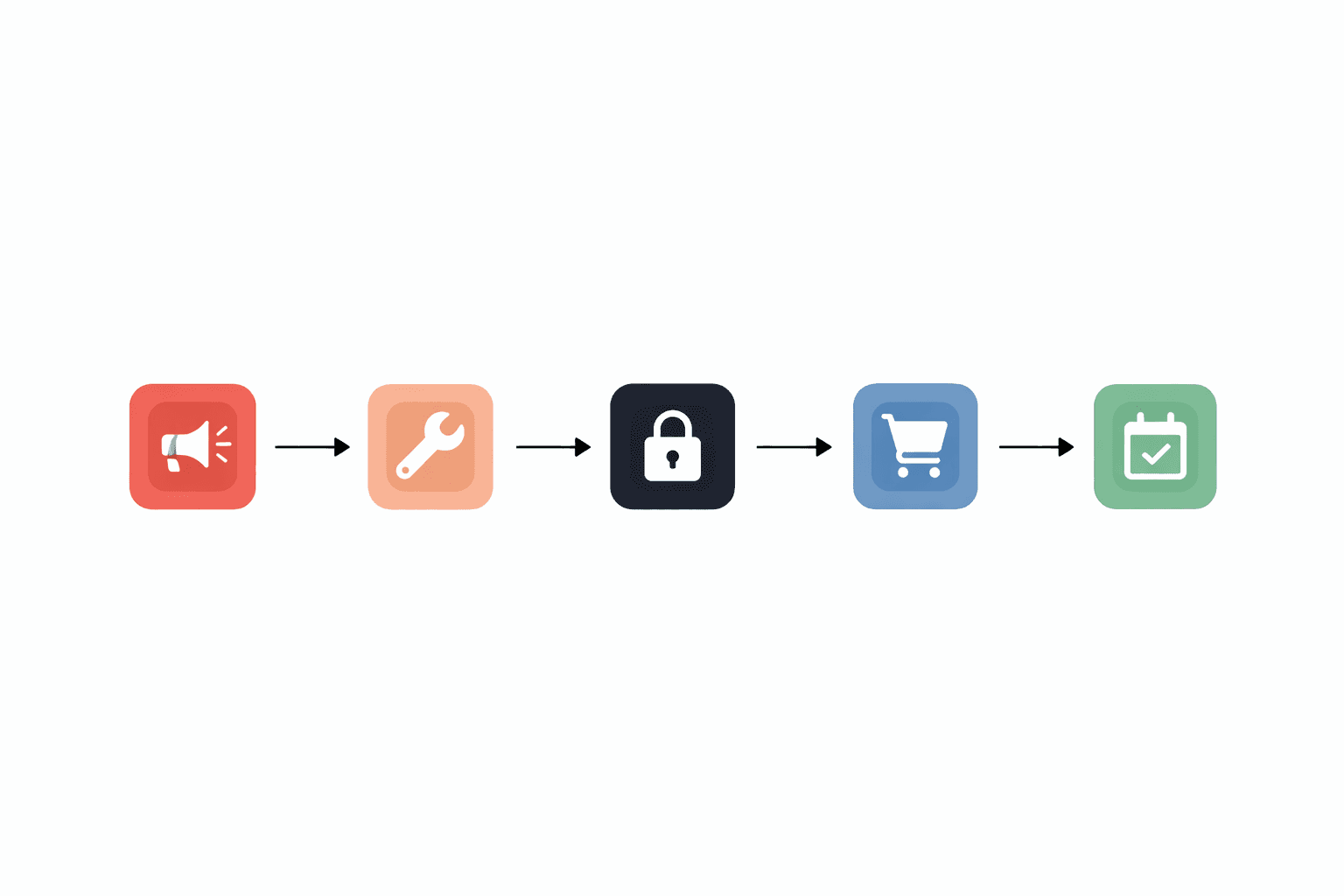
WhatsApp Business message templates are the mechanism that allows companies to communicate proactively with their customers at scale, outside active conversation windows, while ensuring the content complies with the platform’s policies.
They are the difference between a business that only replies when the customer writes first and one that actively supports the customer throughout the entire lifecycle, with confirmations, reminders, updates, and campaigns sent at the right moment.
Quick answer
A WhatsApp Business message template is a predefined communication format that must be reviewed and approved by Meta before it can be sent. They are used to start conversations with customers outside the 24-hour window or for mass sends, and they can include text with dynamic variables, media headers (image, video, document), and quick action buttons. Meta classifies them into three categories: utility (transactional notifications), authentication (OTPs), and marketing (commercial campaigns). Each category has different pricing and specific approval requirements.
Why Templates Are the Core of a WhatsApp Marketing Strategy
Without approved templates, your WhatsApp strategy is limited to replying to incoming messages. With templates, you can confirm orders the moment they are placed, remind customers about appointments before they forget, notify them of a shipment in transit, reactivate a customer who has not purchased in months, or launch a segmented marketing campaign.
Templates are what turn WhatsApp into an active communication channel, not just a reactive one.
The 3 Template Categories and When to Use Each One
Utility templates
These are for transactional messages directly related to a purchase, registration, or previous user action: order confirmations, shipping updates, appointment reminders, payment notifications, or activity summaries in an account.
They are the easiest to get approved because their purpose is clearly informational and the user expects to receive them. They are also the most cost-effective in terms of conversation cost.
Authentication templates
These are exclusively for sending one-time verification codes (OTP), temporary passwords, or login confirmations. Meta applies very strict criteria to this category: the message must clearly identify the business, include the code, and contain no additional promotional content.
Marketing templates
These are for commercial communications: product launches, special offers, abandoned cart recovery, reactivation of inactive customers, WhatsApp newsletters, or any message whose main objective is to drive a purchase or engagement action.
They are the most versatile, but also the ones that require the most attention during creation to ensure approval.
Template Structure: The 4 Components
Header (optional): Opens the message. It can be text (maximum 60 characters), an image, a video, or a document. Media headers significantly increase response rates in marketing templates.
Body: The main text. Maximum 1,024 characters. It supports dynamic variables in the format {{1}}, {{2}}, and so on, which are automatically replaced with real data at the time of sending, such as the customer’s name, order number, appointment date, amount, and so on.
Footer (optional): Secondary text with lower hierarchy, ideal for legal information, cancellation policies, or opt-out instructions.
Buttons (optional): Up to three action buttons. They can be call-to-action buttons (web link or phone call) or quick replies (the customer responds with one tap). They are one of the elements that most increase interaction rates.
Template Examples for the Most Common Use Cases
Booking confirmation:
Hi, {{1}}. Your appointment is confirmed for {{2}} at {{3}} with {{4}}. If you need to change it, tap the button below.
[Reschedule appointment]
24-hour reminder:
{{1}}, you have an appointment with us tomorrow at {{2}}. We will be expecting you at {{3}}. Can you confirm your attendance?
[Confirm] [Cancel]
Inactive customer reactivation:
Hi, {{1}}. We have not heard from you in a while. Here is an offer just for customers like you: {{2}} until {{3}}.
[View offer]
Satisfaction survey:
{{1}}, thank you for your visit on {{2}}. How would you rate your experience?
[Excellent] [Could be better] [I need help]
Best Practices for Getting Meta to Approve Your Templates
Clearly identify your business
Templates that do not make it clear who is sending the message have a very high rejection rate. Your company name should appear in the body or footer.
Avoid overly promotional language
Words in all caps such as FREE or URGENT, or too many exclamation marks, trigger rejection filters. The tone should be informative, helpful, and proportionate.
Do not include URLs in the message body
Links in the body have higher rejection rates. If you need to include a link, do it through a call-to-action button.
Use variables consistently
Each variable must make sense in the context of the message. Templates with variables that could be filled with arbitrary content are often rejected.
Create language variants from the start
If your audience includes contacts in different languages, create the template in each language from the very first approval submission. Each variant is approved separately.
The Approval Process Step by Step
The process is done through Meta Business Manager or through the provider platform you use. You go to the templates section in WhatsApp Manager, create the template with all its components, select the category and language, and submit it for review. Meta reviews it within a time frame ranging from a few minutes to 24–48 hours depending on the category and the period. If it is rejected, you receive the specific reason, and you can edit it and resubmit it.
Frequently Asked Questions
How long does Meta take to approve a template?
Most templates are reviewed in less than 24 hours. Marketing templates during high-demand periods may take up to 48 hours. Authentication templates are often approved within minutes if they meet the requirements.
Can I edit a template once it is approved?
Yes, but any modification restarts the approval process. It is recommended to have several approved variants for different situations before launching a campaign.
Do templates have character limits?
The body has a limit of 1,024 characters and the text header has a limit of 60 characters. Button labels can contain up to 25 characters each.
Can I include images in a template?
Yes. Media headers (image, video, document) are allowed and are especially effective in marketing templates. The image is attached when sending the message and can be dynamic if you use a variable URL.
What happens if a template is rejected several times?
Meta may temporarily pause your ability to send templates if you accumulate a high number of rejections. That is why it is important to carefully review the reason for each rejection before resubmitting.
Need help creating and getting WhatsApp Business templates approved for your business? At Uptail, we design your templates, manage the approval process with Meta, and integrate them into your automated communication flows.